
Vidu Q4 Image to Video: Bring One Picture to Life
Your image becomes the first frame, and Vidu Q4 decides what happens next — guided by a few words about motion and camera. Clips run up to 16 seconds and up to 4K.
When to Use Vidu Q4 Image to Video
Image to video is the mode for when the picture is already right.
You already have the shot
A finished photo, poster, painting or AI-generated still that you like exactly as it is. Animating it keeps every detail you approved instead of re-imagining the scene.
The look must not change
Packaging, brand colors, a logo or a specific face in a photo. Because the clip starts from your image, these stay the way they were photographed in the opening frame.
One image, many takes
Run the same picture with different prompts or seeds to get a slow push-in, an orbit and a handheld version, then keep the best take for your edit.
You want results fast
The prompt is optional, so a single upload is enough for a first test; add a few words about motion and camera once you want more control.
If you need to combine several photos, change the aspect ratio or add character voices, the better fit is Vidu Q4 reference to video.
Preparing Your Image for Animation
The source picture decides most of the result. A few minutes of preparation saves several paid retries.
- Crop to the final aspect ratio first. Image to video keeps the shape of your picture, so crop to 9:16 for Shorts and Reels, 16:9 for YouTube or 1:1 for feeds before you upload.
- Leave room for the camera. If you plan a pan or a pull-back, keep some space around the subject. A face cropped tight to the edge has nowhere to go when the camera moves.
- Use a sharp, clean image. PNG, JPG and WebP all work. Large files are compressed in your browser before upload, so there is no need to shrink them yourself; blurry or noisy images, however, stay blurry in motion.
- Remove text, borders and watermarks. Overlaid text tends to warp once things start moving. Add captions in your editor afterwards instead.
Image to Video Settings Explained
Credit cost depends on resolution and length and is shown before you generate; the credit pricing page lists the rates.
| Setting | Options | How to choose |
|---|---|---|
| Duration | 3–16 seconds | Use 4–6 s for a single motion such as a turn or a reveal. Go longer only when the prompt describes a sequence of actions. |
| Resolution | 540p, 720p, 1080p, 2K, 4K | Test the motion at 540p. Render 1080p for social posts; choose 2K or 4K, which add 10-bit color, for large screens or grading. |
| Native audio | Always on | Every clip comes with ambient sound and effects that match the scene. Mute or replace it in your editor if you plan to add music. |
| Seed | Random or a fixed number | Reuse the seed of a take you like, then change only the prompt to refine it. |
Directing Camera Motion with Your Prompt
In image to video the picture already answers "what does it look like", so every word of your prompt should answer "what happens". Describing the scene again wastes words and can pull the model away from your image.
A reliable order is subject action, then camera move, then atmosphere: "She lifts her cup and smiles. The camera slowly pushes in. Morning light, quiet café sounds." Keep to one main camera move per clip; asking for a pan, a zoom and an orbit at once usually produces none of them cleanly.
Speed words matter more than you might expect. "Slowly", "gently" and "barely" keep the image intact, while "suddenly" and "fast" invite bigger changes. Never describe something that contradicts the picture, such as rain when the photo shows a sunny sky.
- Push in / pull back: move toward or away from the subject — the safest moves for portraits and products.
- Orbit: circle around the subject; best for objects shot against a simple background.
- Pan / tilt: turn the camera sideways or up and down to reveal more of a landscape or building.
- Tracking shot: follow a moving subject, such as a runner or a car.
- Static camera: only the subject moves — useful when the frame itself must not change.
Vidu Q4 Image to Video Output Specs
These limits belong to the Vidu Q4 Preview, the current public version of the model, and may change when the full release arrives.
| Spec | Value |
|---|---|
| Input | 1 image (PNG, JPG or WebP), used as the first frame |
| Length | 3–16 seconds |
| Resolution | 540p, 720p, 1080p, 2K, 4K |
| Color depth | 10-bit at 2K and 4K |
| Aspect ratio | Same as the uploaded image |
| Audio | Native audio, always included |
| Output | MP4 download, also saved in My Creations |
Vidu Q4 Image to Video: Before and After
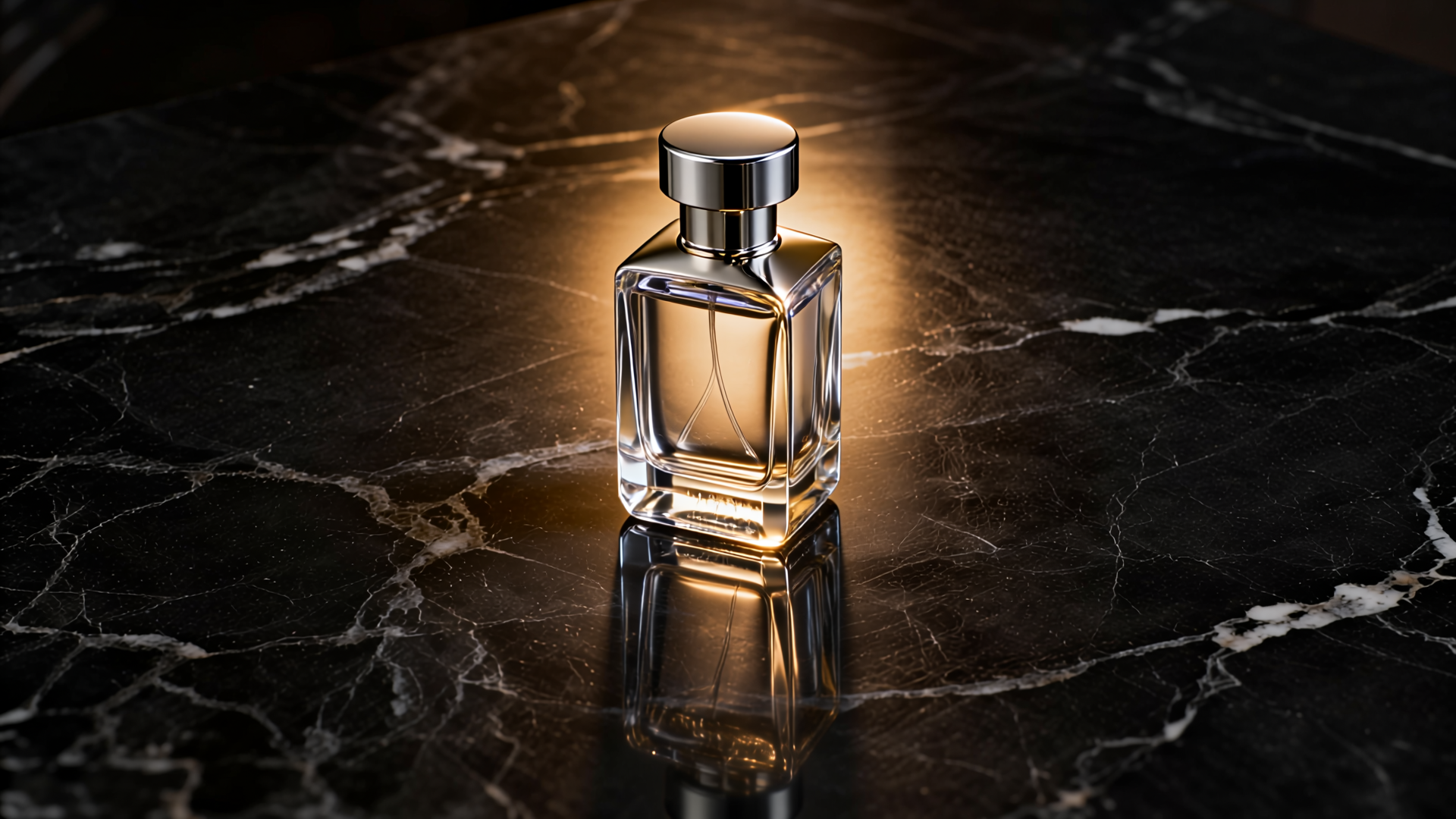
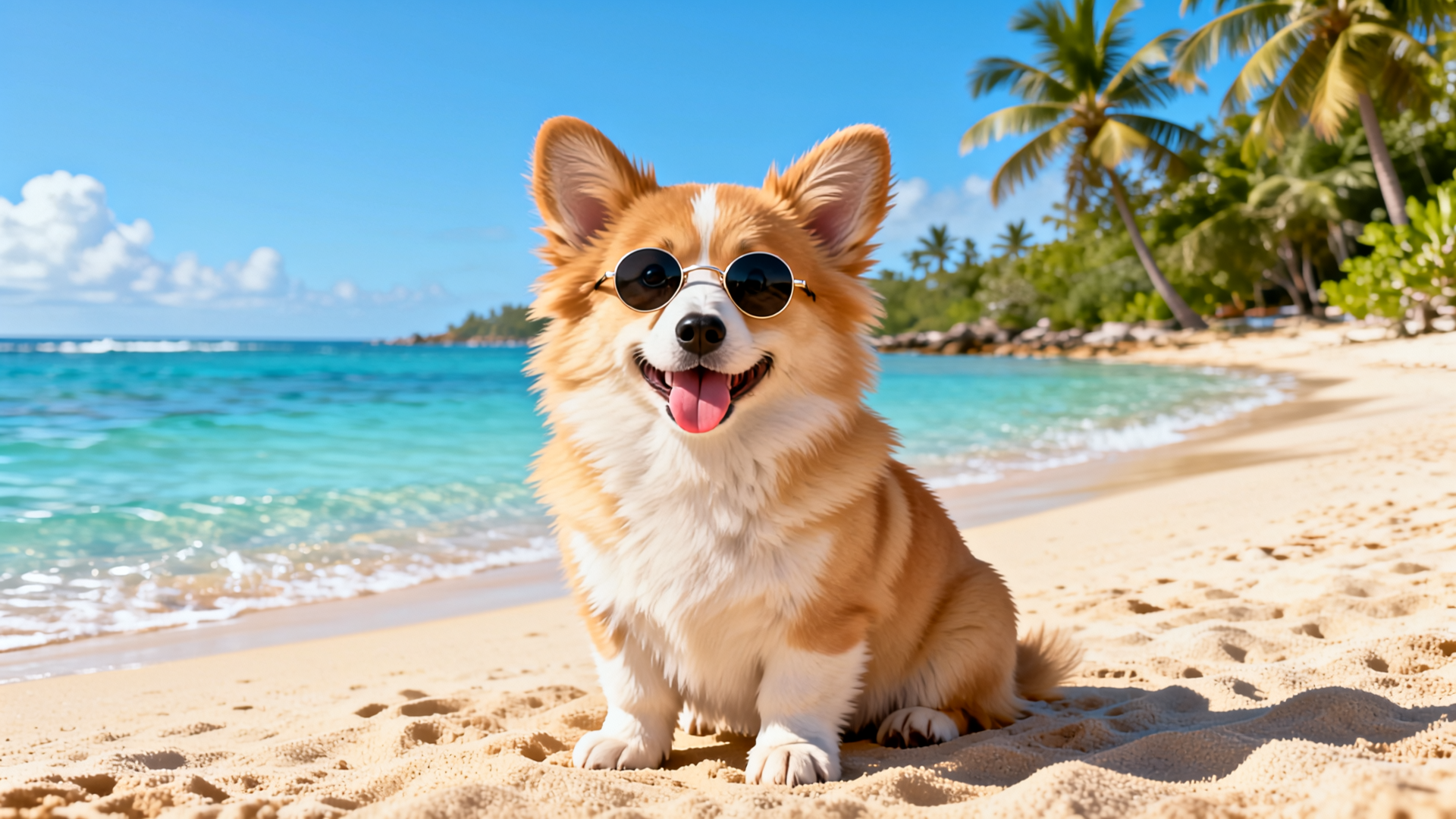
Two real generations from this site at 720p and 5 seconds. The source on the left is the exact image that was uploaded.
Source image
Vidu Q4 output
Product still to orbiting product shot
Prompt: The camera slowly orbits around the perfume bottle while a band of golden light sweeps across the glass and fine mist drifts through the frame.
Source image
Vidu Q4 output
Pet photo to playful tracking shot
Prompt: The corgi runs happily toward the camera along the shoreline as small waves splash around its paws. Playful, upbeat mood, smooth tracking shot.
Image to Video Prompt Examples
Each prompt below assumes the image already shows the subject. Swap the details for your own picture.
Food close-up
Steam rises from the bowl and a drop of sauce slides down the noodles. The camera slowly pushes in. Warm kitchen light, soft sizzling sound.
Small, physical motions keep food looking appetizing.
Landscape
Clouds drift across the mountain peaks and sunlight moves over the valley. The camera pans slowly to the right. Calm, wind in the trees.
A slow pan reveals more of a wide scene without distorting it.
Fashion portrait
A light breeze lifts her hair and the dress fabric ripples. She turns her head toward the camera. Static camera, golden hour.
A static camera keeps the outfit fully in frame.
Architecture
The camera rises and pulls back to reveal the whole building and the street below. People walk past. Clear afternoon, city ambience.
Pull-backs work well when the photo has some sky above the subject.
Image to Video or Reference to Video?
Both modes use the same model and output specs. The question is whether your opening frame already exists.
A common workflow uses both: build a strong frame with Vidu Q4 reference to video, then animate variations of it here. For background on the model itself, see the Vidu Q4 overview, or open the Vidu Q4 generator and try it with your own image. The full Vidu Q4 settings guide covers every control in both modes.
| You want to… | Use |
|---|---|
| Animate a photo or artwork exactly as it is | Image to video |
| Keep packaging or a logo identical to the photo | Image to video |
| Place one product or person into a new scene | Reference to video |
| Put two characters from separate photos together | Reference to video |
| Choose a different aspect ratio than your image | Reference to video |
| Give characters cloned voices or dialogue | Reference to video |
Vidu Q4 Image to Video FAQ
Can Vidu Q4 image to video change my picture's aspect ratio?
No. The output keeps the shape of the uploaded image. Crop the picture to the ratio you need before uploading, or use reference to video, where you choose from 16:9, 9:16, 1:1, 4:3 and 3:4.
Do I need a prompt for Vidu Q4 image to video?
No, the prompt is optional. Without one, the model picks a natural motion for the scene. A short prompt about the action and camera gives you much more control.
How long can a Vidu Q4 image to video clip be?
Between 3 and 16 seconds. Single movements look best at 4–6 seconds; longer clips work when the prompt describes several actions in order.
Does Vidu Q4 image to video generate sound?
Yes, every clip comes with native audio. The model adds sound that fits the scene, such as waves, footsteps or city noise. For a silent clip, mute it in your editor or use reference to video, where audio can be switched off.
Which image formats does Vidu Q4 image to video accept?
PNG, JPG and WebP. Large files are compressed in the browser before upload so that they process quickly.
Can I animate a photo of a real person?
Only if you have that person's permission. Our Terms of Service do not allow using someone's face without consent or creating content meant to deceive people.